VS Code
Use the PostQ Code Scanner extension to scan source in VS Code, review findings in Problems, and open reports alongside the affected code. Local history and comparison help you investigate changes between scans.
Install and activate
- Install
postq-code-scanner-vscode-<version>.vsix. - Open a source workspace.
- Select the PostQ Code Scanner Activity Bar icon.
- Run Configure or start a scan. The extension checks Java first, then OpenGrep
1.26.0, then the issued license file when the selected scan requires one. - If Java or OpenGrep is not available to VS Code, select the executable file from the prompt.
- Confirm the Configuration view shows green checks for the license, Java 11+, and OpenGrep for licensed folder or workspace scans.
Run a scan
Open the Command Palette and run one of these commands:
- PostQ Code Scanner: Scan Current File
- PostQ Code Scanner: Scan Workspace Folder
- PostQ Code Scanner: Scan All Workspace Folders
You can also right-click a supported file or folder and select PostQ Scan to create a fresh scoped report. On folders, PostQ scan & Update Existing Report updates the latest report when one exists and creates a fresh scoped report when no previous report is available.
Without a license, VS Code supports file scans only, up to five unique source files in local report history. Scanning a sixth new file prompts you to activate a beta license or delete that workspace's PostQ report history and start a fresh no-license set. Folder and workspace scans require a beta license.
Scans run OpenGrep and create a report snapshot under the workspace report history.
In the Scans view, expand a workspace folder for these scan controls:
- Scan Folder starts a workspace scan.
- Open Latest Report opens the most recent completed report for that workspace.
- Skip Folders opens a checkbox list of workspace-relative folders to exclude from future
scans, such as
reports,build,target,dist, ornode_modules. - Languages opens a checkbox list with Auto-detect and the supported scanner language hints. Select Auto-detect or one language for future scans of that workspace.
The skip-folder and language actions are also available from the workspace-folder context menu in the Scans view. They are menu actions, not hover-only inline buttons.
Review and compare
The Activity Bar contains:
- Scans: workspace scan status and controls.
- Reports: completed report history and generated report files.
- Configuration: license activation/removal, Java/OpenGrep path settings, a refresh action for readiness, and an About PostQ Code Scanner action for product and build and license dates; visible by default.
- Transformation Hub: collapsed by default; its Connection status is not active in this release.
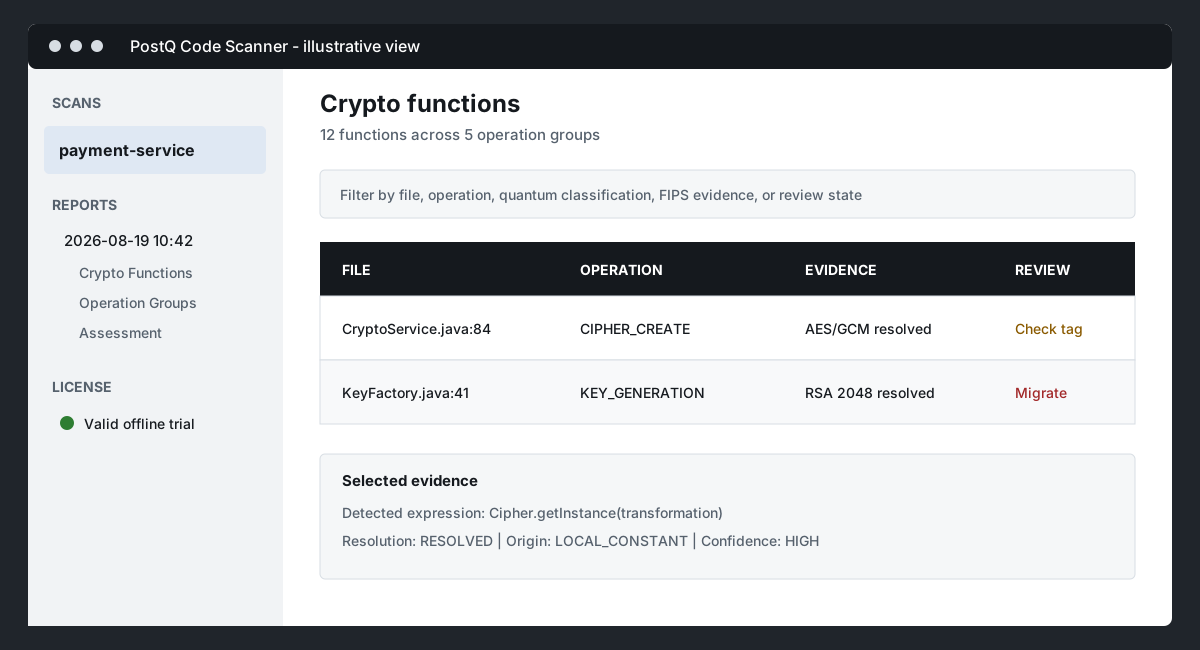
Open a completed scan in PostQ Code Scan. Select exactly two scans from the same workspace with Ctrl/Cmd-click and choose Compare Selected Reports to open PostQ Report Compare. Source navigation opens the matching file and line when the source is still available in the workspace.
Use the toolbar presets and filters to focus the review. To share selected Assessment, Findings, or Groups rows, choose the download icon after the group-by control and export CSV or JSON.
Settings
| Setting | Purpose |
|---|---|
postqCryptoReadiness.scanner.scannerServicePath |
Optional absolute path to the PostQ scanner |
postqCryptoReadiness.scanner.language |
Optional global language hint; the Scans view Languages action can override this per workspace |
postqCryptoReadiness.scanner.openGrepPath |
Optional OpenGrep 1.26.0 executable path |
postqCryptoReadiness.scanner.javaPath |
Optional Java executable path |
postqCryptoReadiness.scanner.overwriteExistingReports |
Ask before overwrite or always overwrite |
postqCryptoReadiness.scanner.historyLimit |
Retain 2 to 100 snapshots; default 20 |
postqCryptoReadiness.diagnostics.enabled |
Publish scan findings to VS Code Problems |
Generated reports are stored under:
<workspace>/reports/postq/scans/<scan-id>/
Diagnose a failed scan
The dedicated PostQ Scanner terminal remains open on failure. Review it with the PostQ Crypto Readiness Output channel for the command, stdout, stderr, heartbeat messages, and exit code. Use Stop Running Scan or close the terminal to stop an active scan.